What is SHOUTcast?
SHOUTcast is a free-of-charge internet DJ solution. It allows anybody on the internet to broadcast audio from their PC to listeners across the globe. SHOUTcast relies on MP3 or AAC technology to deliver audio in a live situation.
SHOUTcast
DSP Plug-In for Winamp 5.x
SHOUTcast
DSP Plug-In for Mac OS X, Linux
and FreeBSD
SHOUTcast
DSP Plug-In for Winamp 5.x
|
SHOUTcast DSP 1.9.0 Available
We're pleased to announce the release
of SHOUTcast DSP 1.9.0. This release includes
support for streaming in AAC+. Note that
the client will also need to support AAC+
(we recommend last version of Winamp).
SHOUTcast DSP 1.9.0 for Winamp:
Download
Link
This is currently available for Windows.
UNIX/Linux/etc version coming soon.
Step 1
Once the download has completed, you will need to install the software.
Verify that Winamp is not running, then double click on the installer that you downloaded and follow the on-screen instructions. When the installation process has completed, start Winamp and open your preferences.
Click on "DSP/Effects" in the menu to the left, and highlight "Nullsoft SHOUTcast Source DSP v1.9.0 [dsp_sc.dll]". When you have selected it, a new window should pop up. You may now close your preferences window.
|
|
|
Step 2
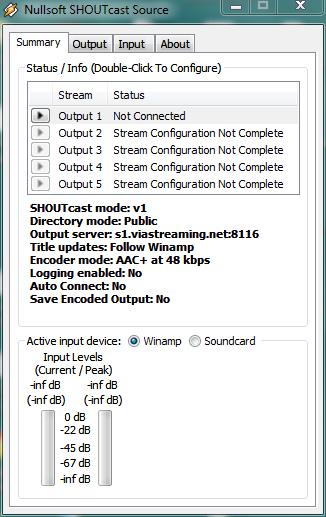
Once you have highlighted the proper row, a dialog box will pop up. This is the main SHOUTcast DSP window. Here, you can configure the server, encoder, and audio settings that you will broadcast with
|
|
Step 3
Select the "Output" tab at the top of your DSP window. Select "Output 1" under the selection box, and fill in all of the following fields properly.
Address:
Here, you need to enter the server that was given to you in the welcome email you received from ViaStreaming. It should look something like "s1.viastreaming.net". Make sure that you put in the proper server, or else you will not be able to connect.
Port:
In this field, you need to enter the port that was given to you in your welcome email. It should contain 4 numbers. Once again, this must be set properly or else you will be unable to connect.
Password:
Last, but not least, you need to set the password that was given to you in your welcome email, or the one that you changed it to. Enter this here, and make sure there are no mistakes.
|
|
Step 4
Yellowpage setup (streaming server
display details)
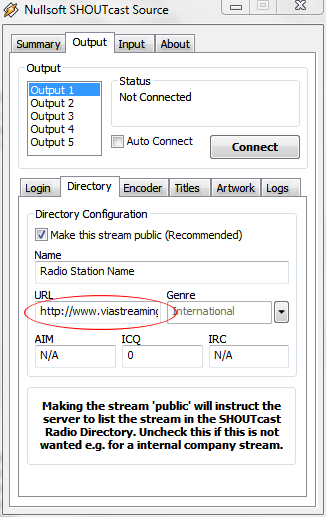
Click on the "Yellowpages" tab right above where you entered all of the previous information.
If you'd like your server to be listed in the SHOUTcast directory, check the "Make this server public" box, and fill in all of the information below the box in a proper manner.
Be sure to check the "Enable Title Updates" and the two boxes that say "Auto" in
order to show your users the title of the song that is playing.
|
|
Step 5
Encoder Settings (select streaming
audio format)
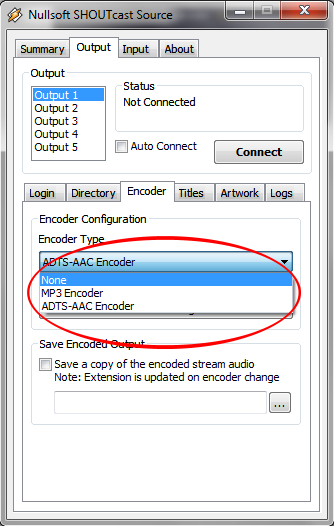
Select the "Encoder" tab at the top of your DSP window.
Make sure under the selection box, you have selected "Encoder 1".
The Encoder Type can be set to either MP3 or AAC+, our servers support both.
MP3 audio sounds alright, but is compatible with just about every media player on the market. AAC+ is only compatible with Winamp and Windows Media Player (with a plugin), but sounds much better at lower qualities.
Be sure to choose wisely.
In the Encoder Settings dropdown, select the bitrate that you ordered from us, and be sure that the line you selected has "Stereo" at the end, so individual sounds will come out of both of your listeners speakers.
Note: If you stream at a bitrate higher than what you have ordered, we will send you a warning email, and your account may be deactivated.
|
Step 6
Input settings (select the input
audio surce)

Soundcard input surce
|

Winamp audio surce (Recommanded)
|
Select the "Input" tab at the top of your DSP window. Unless you have specific soundcard input settings, or want to talk on your stream, select "Winamp" at the Input Device. As every soundcard is different and individual, we cannot give any tutorials for the Soundcard Input.
Step 7
Go back to the "Output" tab in your DSP window. Make sure "Output 1" is selected, and then click the connect button. In the status box above the button, it should give a time and then "Sent xxxx bytes".
Congratulations, you have begun to stream audio!
You may now open any Winamp-compatible audio file in your player, and it will stream to our servers.
|
SHOUTcast
DSP Plug-In for Mac OS X, Linux
and FreeBSD
|
|
Downloading the Latest
Version of SHOUTcast DSP Plug-In
for Mac OS X, Linux and FreeBSD
: Download
Link
There are several ways to go about
getting SHOUTcast onto a shell:
* Run lynx from the prompt, head
to www.shoutcast.com, and download
the appropriate version of SHOUTcast.
Extracting the SHOUTcast
server from the Archive
You can uncompress the .tgz or
.tar.gz file with the following
command:
tar -xzvf sc_trans_posix_040.tgz
Just to be safe, it's worth setting
the permissions correctly before
continuing:
chmod 755 sc_trans_posix_040
Configure the server by editing
sc_trans.conf, as explained below.
You can either edit this file
locally, then upload it to the
*nix box when all changes have
been made, or use a simple text
editor like pico or emacs from
the prompt. Type "man pico"
or "man emacs" at the
prompt for more information on
using these editors.
|
|
|